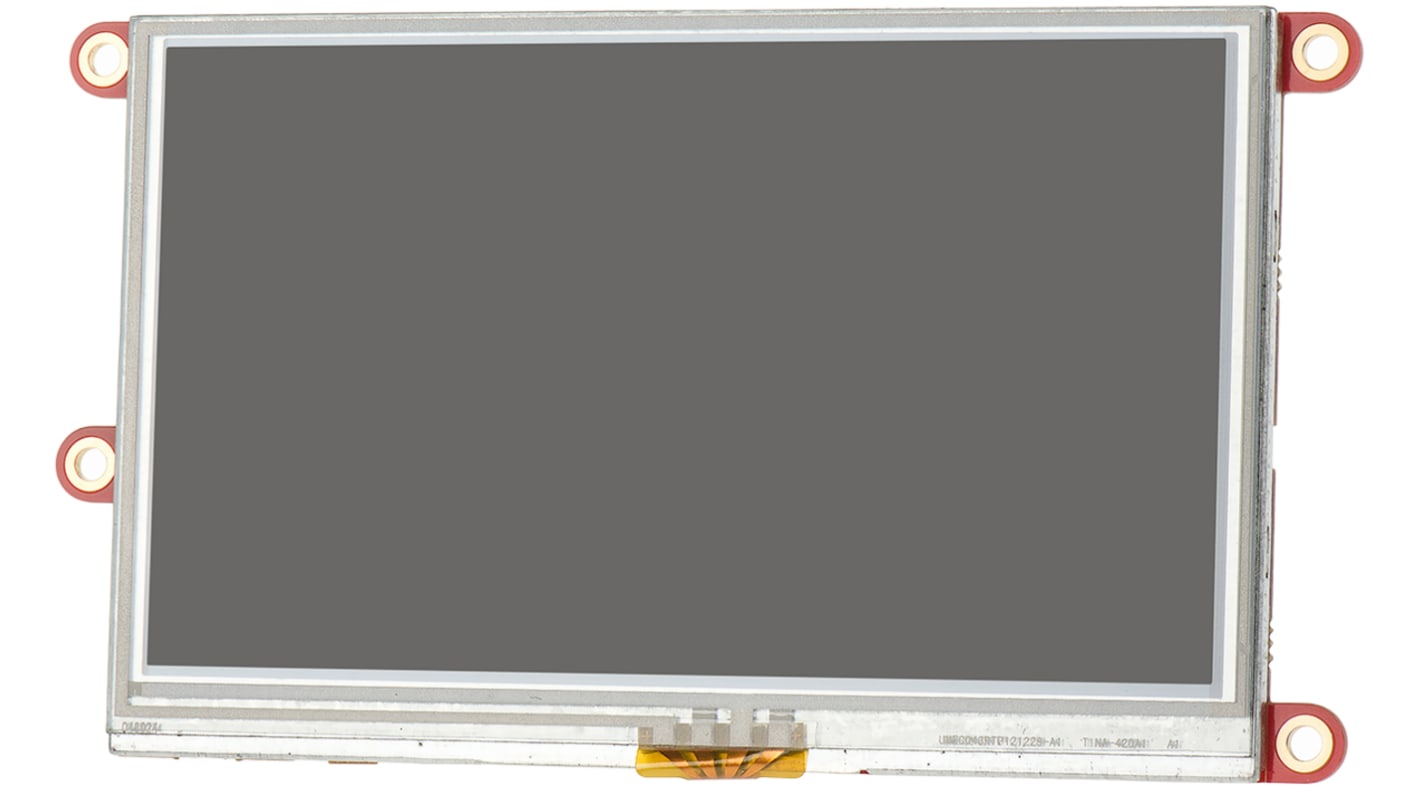
4D Systems Diablo16 4.3 in med Resistiv pekskärm
- RS-artikelnummer:
- 864-6869
- Tillv. art.nr:
- uLCD-43DT-PI
- Tillverkare / varumärke:
- 4D Systems

För närvarande inte tillgänglig
Vi vet inte om den här artikeln kommer tillbaka i lager, RS har för avsikt att ta bort den från vårt utbud snart.
Alternativ
Denna produkt är för närvarande inte tillgänglig. Vi rekommenderar denna produkt istället.
Varje
870,78 kr
(exkl. moms)
1 088,48 kr
(inkl. moms)
- RS-artikelnummer:
- 864-6869
- Tillv. art.nr:
- uLCD-43DT-PI
- Tillverkare / varumärke:
- 4D Systems
Specifikationer
Datablad
Lagstiftning och ursprungsland
Produktdetaljer
Hitta liknande produkter genom att välja ett eller flera attribut.
Välj alla | Attribut | Värde |
|---|---|---|
| Varumärke | 4D Systems | |
| Skärmens diagonala mått | 4.3in | |
| Produkttyp | Raspberry Pi-skärm | |
| Displayteknik | Resistiv pekskärm | |
| Satsens namn | Diablo16 | |
| Välj alla | ||
|---|---|---|
Varumärke 4D Systems | ||
Skärmens diagonala mått 4.3in | ||
Produkttyp Raspberry Pi-skärm | ||
Displayteknik Resistiv pekskärm | ||
Satsens namn Diablo16 | ||
LCD Displays for Raspberry Pi (DIABLO16 processor), 4D Systems
4D System's range of resistive touch LCD Displays for the Raspberry Pi come in 3 different sizes: 3.5 in (8417829), 4.3 in (8646869) and 7 in (8417831).
You can connect the Pi to program the LCD display for graphics, images, text, sound and logging data.
Key Features of the LCD Displays
•DIABLO-16 4DGL graphics controller
•4D Systems Workshop 4 IDE software
•Variety of serial commands
•Power supply comes directly from the Pi
How do I connect my Pi to the display?
Firstly, connect the 4D serial Pi adaptor to your Pi board. Finally, connect the 5-way jumper cable between the adaptor and the LCD display. It's that easy.
Contents
•LCD display
•4D serial Pi adaptor
•150 mm 5-way female-to-female jumper cable
•Quick start user guide
4D Systems LCD-pekskärmar
Note
For new designs the 4D Systems gen4 range of LCD displays should be considered, including:
• gen4-uLCD-43DT (RS part 1257947)
• gen4-uLCD-70DT (RS part 1257951)
• gen4-uLCD-43DT (RS part 1257947)
• gen4-uLCD-70DT (RS part 1257951)