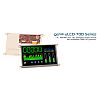
4D Systems, Diablo16 with 7in Resistive Touch Screen
- RS-artikelnummer:
- 841-7831
- Tillv. art.nr:
- uLCD-70DT-PI
- Tillverkare / varumärke:
- 4D Systems
Inte tillgänglig
RS kommer inte längre att lagerföra denna produkt.
Alternativ
Denna produkt är för närvarande inte tillgänglig. Vi rekommenderar denna produkt istället.
Varje
1 703,98 kr
(exkl. moms)
2 129,98 kr
(inkl. moms)
- RS-artikelnummer:
- 841-7831
- Tillv. art.nr:
- uLCD-70DT-PI
- Tillverkare / varumärke:
- 4D Systems
Specifikationer
Datablad
Lagstiftning och ursprungsland
Produktdetaljer
Hitta liknande produkter genom att välja ett eller flera attribut.
Välj alla | Attribut | Värde |
|---|---|---|
| Brand | 4D Systems | |
| Diagonal Display Size | 7in | |
| Display Technology | Resistive Touch Screen | |
| Kit Name | Diablo16 | |
| Välj alla | ||
|---|---|---|
Brand 4D Systems | ||
Diagonal Display Size 7in | ||
Display Technology Resistive Touch Screen | ||
Kit Name Diablo16 | ||
- COO (Country of Origin):
- PH
LCD Displays for Raspberry Pi (DIABLO16 processor), 4D Systems
4D System's range of resistive touch LCD Displays for the Raspberry Pi come in 3 different sizes: 3.5 in (8417829), 4.3 in (8646869) and 7 in (8417831).
You can connect the Pi to program the LCD display for graphics, images, text, sound and logging data.
Key Features of the LCD Displays
•DIABLO-16 4DGL graphics controller
•4D Systems Workshop 4 IDE software
•Variety of serial commands
•Power supply comes directly from the Pi
How do I connect my Pi to the display?
Firstly, connect the 4D serial Pi adaptor to your Pi board. Finally, connect the 5-way jumper cable between the adaptor and the LCD display. It's that easy.
Contents
•LCD display
•4D serial Pi adaptor
•150 mm 5-way female-to-female jumper cable
•Quick start user guide
You can connect the Pi to program the LCD display for graphics, images, text, sound and logging data.
Key Features of the LCD Displays
•DIABLO-16 4DGL graphics controller
•4D Systems Workshop 4 IDE software
•Variety of serial commands
•Power supply comes directly from the Pi
How do I connect my Pi to the display?
Firstly, connect the 4D serial Pi adaptor to your Pi board. Finally, connect the 5-way jumper cable between the adaptor and the LCD display. It's that easy.
Contents
•LCD display
•4D serial Pi adaptor
•150 mm 5-way female-to-female jumper cable
•Quick start user guide
Note
4D Systems LCD Touchscreens
relaterade länkar
- 4D Systems, Gen4 Diablo16 with 7in Resistive Touch Screen
- 4D Systems, Diablo16 Starter Kit with 7in Resistive Touch Screen
- 4D Systems, gen4 Diablo 16 with 7in Resistive Touch Screen
- 4D Systems, Diablo16 with 4.3in Resistive Touch Screen
- 4D Systems, Diablo16 with 3.5in Resistive Touch Screen
- 4D Systems SK-gen4-70DT, Gen4 Diablo16 7in Resistive Touch Screen Starter Kit
- 4D Systems, Gen4 Diablo16 with 2.8in Resistive Touch Screen
- 4D Systems, Gen4 Diablo16 with 3.5in Resistive Touch Screen

